FillKeep Guide
Chrome autofill not working? 8 things to check
If Chrome has stopped filling saved information, the cause may be a disabled setting, missing data, the Chrome profile you are using, the website itself, or a field Chrome does not recognize. Start with these checks before installing anything else.
1. Check that Save and fill is enabled
On a computer, open Chrome and select the three-dot menu, then Passwords and autofill. Chrome currently separates saved information into categories such as Google Password Manager, payments, contact info, identity documents, and travel. Open the category related to the information that is missing and confirm that its Save and fill option is turned on.
These controls are separate. Turning on contact-information autofill does not troubleshoot a saved password, and a payment setting does not control names or addresses. Google’s current Chrome autofill instructions note that Save and fill is normally enabled by default, but autofill will not work for a category if that setting was turned off.
2. Check that the information is actually saved
A setting can be enabled even when the information you expect Chrome to suggest is missing or outdated. Return to Passwords and autofill, open the relevant category, and review the saved entries. For ordinary forms, check contact information such as your name, email, phone number, and address. If the issue is at checkout, inspect payment information separately and only save what you intentionally want Chrome or Google Wallet to retain.
Correct spelling and stale entries before testing again. If you are signed in to Chrome, some changes may also appear on other devices using the same Google Account. Payment methods stored in Google Wallet may need to be edited there rather than directly in Chrome.
3. Make sure you are using the expected Chrome profile
Chrome profiles keep browsing information separate. A Work profile may have different contact details, settings, and saved data from a Personal profile. Look at the profile icon near the top-right corner of Chrome and confirm that you are testing in the profile where the information was saved.
This is especially easy to miss after opening a link from another app or switching accounts. Google explains that profiles keep Chrome information separate in its guide to managing multiple Chrome profiles. Switching Chrome profiles is not the same as switching profiles inside FillKeep; they are independent systems.
4. Try the form on a secure website
Chrome may decide not to offer particular saved information when a website is not secure enough. Check the connection indicator beside the address and avoid entering personal or payment information on a page Chrome identifies as unsafe. Do not try to bypass Chrome’s security protections just to make autofill appear.
If the same type of information works on a trusted HTTPS site but not on the original page, the difference may be the website rather than a damaged Chrome setting. Google specifically lists insufficient website security as one reason saved information may not be suggested.
5. Check whether Chrome recognizes the field
Even on a secure page, Chrome may not detect every field. Websites can use custom names, unusual internal structures, or components that do not clearly communicate what a field represents. That can affect fields such as Customer ID, Membership Number, Department, Internal Reference, or Account Code.
Test a common field such as name, email, or phone on the same form. If Chrome recognizes those fields but ignores one business-specific field, autofill itself may be working normally. The compatibility problem may be limited to how that field is built or labeled. Chrome may recognize a similar field on another website, so this is not an absolute rule about a particular label.
6. Check Enhanced Autofill availability
Chrome’s current desktop help describes Enhanced Autofill under Settings → Autofill and passwords → Autofill settings. The feature can help Chrome fill more kinds of information, but Google cautions that not all websites and forms are compatible. Autofill features can also vary by region, account, device, language, and rollout status.
If the option appears in your Chrome installation, confirm that it is enabled and test again. If it does not appear, do not assume your browser is broken. Availability varies, and enabling it does not guarantee that every custom field will be detected.
7. Restart Chrome and test again
Close every Chrome window completely, reopen the browser, return to the form, and click the field again. This simple reset is worth trying after changing autofill settings or saved information. It also rules out a temporary browser-session problem without deleting your data or resetting unrelated settings.
8. Determine whether you actually need custom form autofill
If Chrome correctly fills your name, email, phone number, and address but repeatedly misses customer IDs, internal codes, departments, custom dropdowns, or other workflow-specific information, the problem may not be that Chrome autofill is broken. You may need a tool designed for custom form autofill.
This distinction matters: changing Chrome settings repeatedly will not necessarily help when a form uses a field that standard browser autofill does not understand. A custom form filler can associate a recurring field with information you choose and reuse that association later.
When FillKeep can help
FillKeep is designed for repetitive forms where standard browser autofill is not enough. You save frequently used information, let FillKeep recognize common fields, use Teach FillKeep for custom or unrecognized fields, and then fill matching empty fields with the active profile.
- Save your information. Add common details and Custom Information that belongs to your workflow.
- Let FillKeep recognize common fields. It can match familiar form labels where appropriate.
- Teach custom fields when needed. Associate an unrecognized field with the saved value you selected for that profile and site.
- Fill the current form. Use the active profile to complete matching empty fields in one click.
FillKeep supports common controls including standard text inputs, textarea fields, selects or dropdowns, checkboxes, and radio buttons. It also supports multiple profiles for separate Work, Personal, client, or recurring workflows.
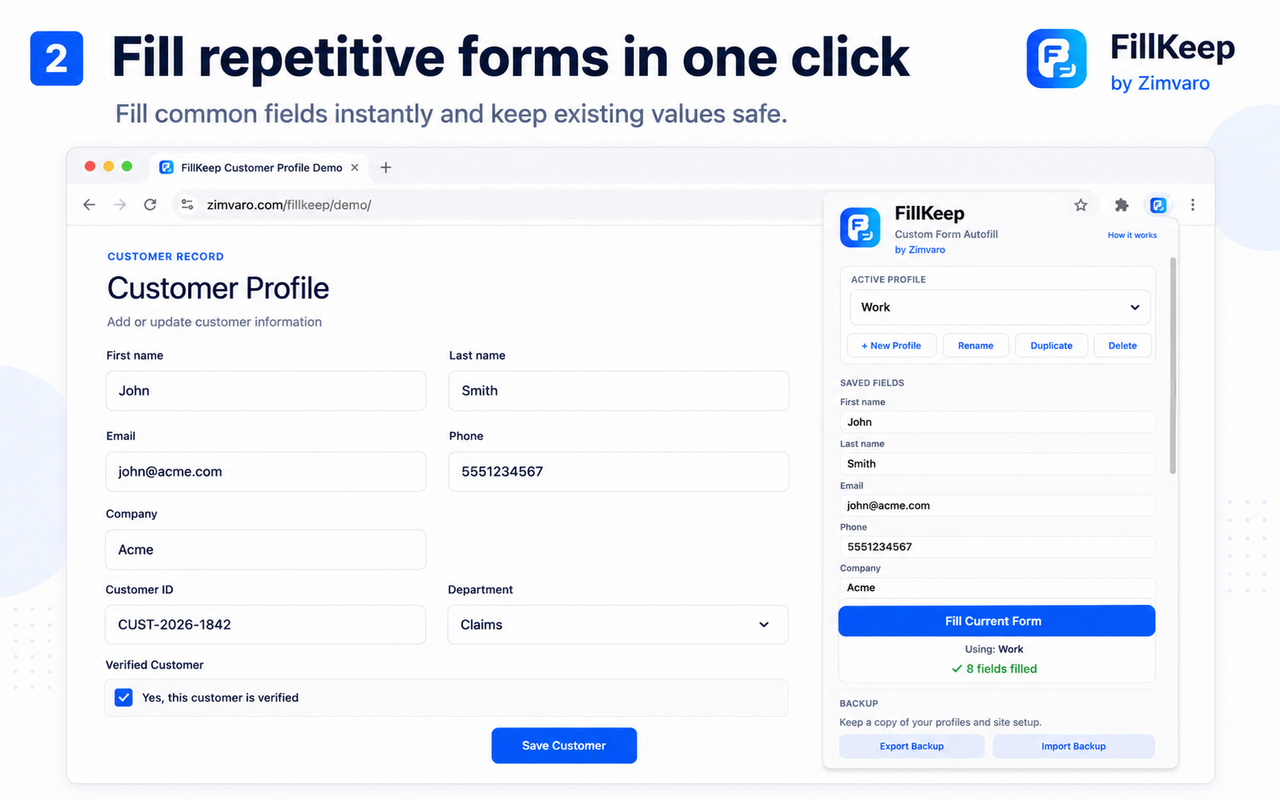
Example: Chrome recognizes your email but not your Customer ID
Consider a customer form with First name, Last name, Email, Phone, and Customer ID. Chrome may handle the common contact fields but may not recognize Customer ID. With FillKeep, you can save a Custom Information value such as CUST-2026-1842, teach the association for that profile and site, and reuse it on later visits.
This does not mean Chrome can never recognize a Customer ID. It means a custom field may need a clearer signal or a tool that lets the user define the relationship directly.
What we tested with FillKeep
During FillKeep compatibility testing, we verified standard text inputs, textarea, select or dropdown controls, checkboxes, radio buttons, and React/Material UI text fields. We also encountered a real radio-button group without explicit value attributes and adjusted FillKeep to use human-facing signals such as labels when it is safe to do so.
These tests demonstrate the controls and patterns we tested; they are not a claim that every custom component on every website is universally compatible.
Privacy in the current version
FillKeep currently stores profiles and learned fields locally in the user’s Chrome browser profile using chrome.storage.local. The current version has no analytics and no backend that processes form data; learned information stays local. Read the FillKeep Privacy Policy for the complete details.
Frequently asked questions
Why is Chrome not autofilling my saved information?
Common causes include a disabled Save and fill setting, missing or outdated saved data, using a different Chrome profile, website security, or a field Chrome does not detect.
Why does Chrome autofill work on some websites but not others?
Forms are built differently. Chrome may withhold information on an insecure page or fail to detect a field on an otherwise secure site. Enhanced Autofill is also not compatible with every website or form.
Can Chrome autofill custom fields?
Sometimes. Chrome can recognize more than basic contact fields, particularly as its autofill features evolve, but support depends on the field, form, region, and available Chrome features. A custom field may still go unrecognized.
What should I do if Chrome does not recognize a form field?
Confirm that common fields work, check the page is secure, and test whether Enhanced Autofill is available. If the missing field contains recurring, non-sensitive workflow information, a custom form autofill tool may be useful.
Is FillKeep a replacement for Chrome autofill?
Not necessarily. FillKeep complements standard browser autofill for repetitive workflows and custom information. You can continue using Chrome for the information it already handles well.
Does FillKeep fill passwords or payment-card fields?
No. FillKeep is designed to avoid passwords, payment-card fields, one-time codes, and other clearly identified sensitive fields.
Try FillKeep for repetitive forms
If Chrome handles common contact information but your workflow still includes recurring custom fields, learn how FillKeep can help.
Try FillKeepLaunching soon on the Chrome Web Store.